
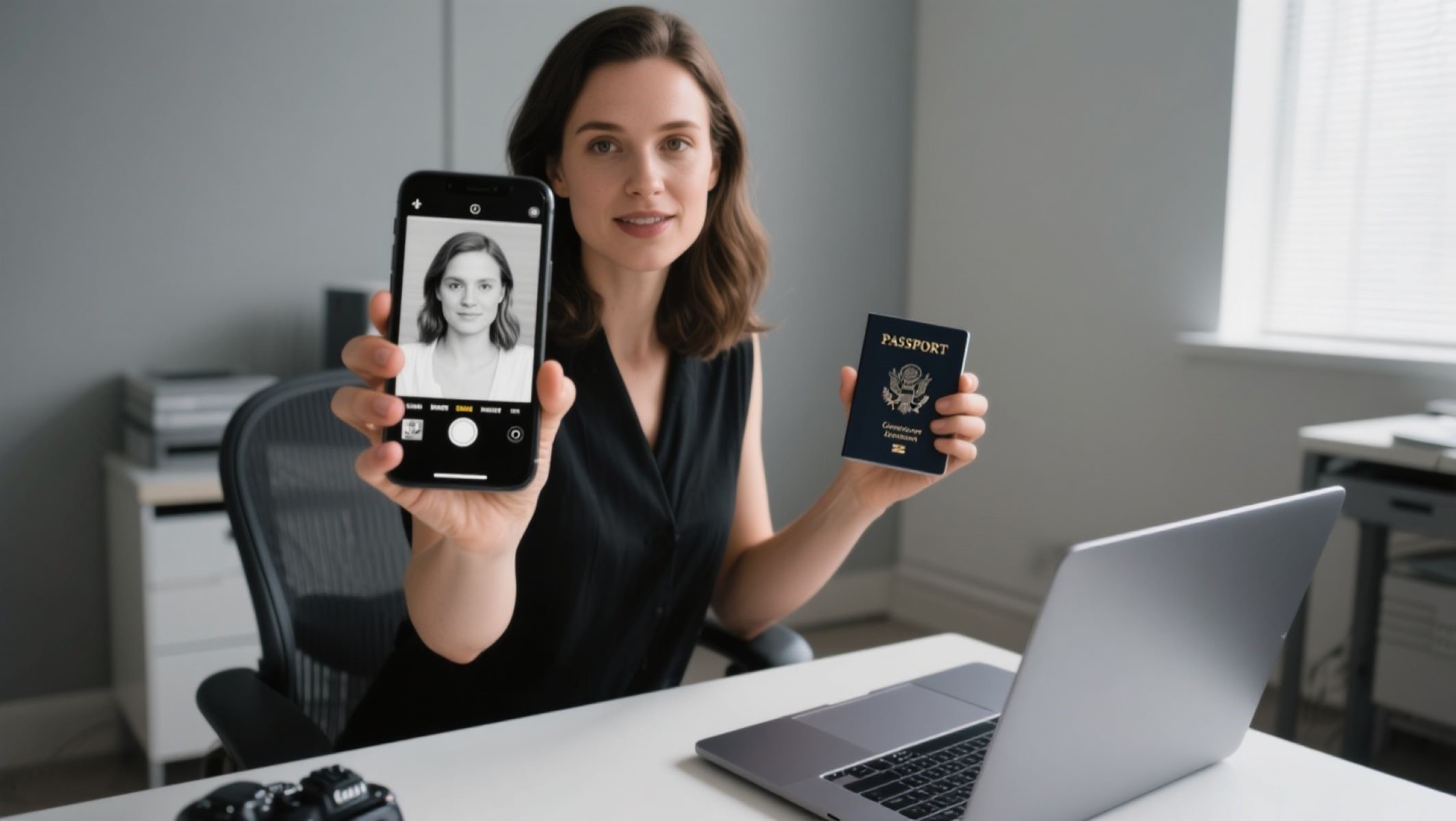
How to Use a Passport Photo Maker to Avoid Rejections
We allknow that applying for a passport can be stressful, but here’s a little secret — your passport photo might cause more headaches thanyou expect. A single rejected photo can delay your entire application process. So, how do you make sure your photo is just right? That’s where a passport size photo maker comes in handy. Using a passport photo maker isn’t just about convenience. It’s about avoiding costly and time-consuming rejections. Let’s walk through how you can use one effectively, so your photo passesthe test on the first try.
What Is a Passport Photo Maker?
A passport photo maker is essentially an online tool or software designed to simplify the process of creating a passport-compliant photo. Instead of worrying about complicated requirements or making multiple trips to a photo studio, this tool allows you to take or upload your own photo and then adjusts it to meet the official standards set by passport authorities. It’s like having a professional photographer and editor right at your fingertips, guiding you step-by-step.
One of the key features of a passport photo maker is that it automatically ensures the photo is the correct size. Passport photos have very strict dimensions, which vary slightly depending on the country. Getting this wrong can lead to instant rejection. The tool also helps by managing background settings, replacing any distracting or non-compliant backgrounds with a plain, often white or light-colored background that meets official requirements. This way, your photo looks clean and professional.
Lighting and exposure are another critical part of a passport photo, and many people find it tricky to get right. Passport photo makers help correct lighting issues by adjusting brightness and contrast, making sure your face is clearly visible without harsh shadows or glare. This feature is particularly useful if you’re taking the photo at home with less-than-ideal lighting conditions, ensuring your photo still looks crisp and clear.
Finally, a passport photo maker helps with alignment and face positioning. Your head must be properly centered and sized within the frame, with eyes at the correct height, and your expression neutral. This might sound complicated, but the tool uses smart guides or AI to help you position your face correctly. The result is a perfectly formatted passport photo that ticks all the official boxes, saving you time, stress, and the frustration of photo rejections.
Why Do Passport Photos Get Rejected?
| Reason | Explanation | Common Mistakes | Impact on Application | How a Passport Photo Maker Helps |
| Wrong Size or Dimensions | Every country has strict and specific size requirements for passport photos. | Uploading photos that are too big, too small, or not matching the required aspect ratio. | Photos that do not meet size criteria are immediately rejected, causing delays. | Automatically crops and resizes photos to the exact required dimensions. |
| Poor Lighting or Shadows | Uneven lighting or harsh shadows on the face or background can distort your image. | Taking photos in low light, with shadows falling on the face, or harsh sunlight causing glare. | Shadows can obscure facial features, making the photo unusable. | Adjusts brightness and contrast, removes shadows, and ensures even lighting. |
| Incorrect Background Color | Most passport photo regulations require a plain white or light-colored background. | Using backgrounds that are dark, patterned, or cluttered with objects. | Background issues distract from the face and often lead to rejection. | Automatically removes and replaces backgrounds with plain, compliant colors. |
| Facial Expression | Passport photos demand a neutral expression with both eyes open and mouth closed. | Smiling, frowning, blinking, or tilting the head. | Non-neutral expressions fail biometric checks and are disqualified. | Guides the user to maintain a neutral expression and aligns the face correctly. |
| Head Position & Size | The head must be properly sized and centered in the photo frame. | Head too large, too small, off-center, or tilted. | Misalignment leads to automatic photo rejection. | Uses AI-based tools to align and size the head precisely within the frame. |
| Accessories & Clothing | Items like hats, sunglasses, or uniforms can interfere with identification unless medically necessary. | Wearing glasses with glare, hats, or colored clothing that blends with the background. | Such accessories can obscure the face and cause rejection. | Detects and advises removal of accessories or helps adjust the photo accordingly. |
Choose the Right Passport Photo Maker
Not all passport photo makers are created equal, and choosing the right one can make a huge difference in ensuring your photo is accepted without hassle. When selecting a passport photo maker, you want to be confident that it meets all your needs and follows official standards precisely. Here’s a detailed list of factors to consider when picking the perfect tool:
- Compliance with Country-Specific Passport Photo Rules: The passport photo maker should support and strictly adhere to the specific photo size, background color, head positioning, and other guidelines mandated by your country’s passport authority. Since requirements differ worldwide, the tool must offer customizable options or presets for different countries.
- User-Friendly and Intuitive Interface: Look for a passport photo maker with a clean, easy-to-navigate interface. Whether you are tech-savvy or a beginner, the tool should guide you step-by-step without confusing menus or complicated processes. Clear instructions and visual aids go a long way in helping you create the perfect photo.
- Automatic Background Removal or Adjustment: One of the trickiest parts of passport photos is having a clean, plain background. The best photo makers offer automatic background detection and removal features, replacing any unsuitable background with a compliant solid color like white or light gray. This saves you the headache of manually editing your photos or trying to find a perfect wall.
- Multiple Format Options to Save or Print: The tool should give you the flexibility to save your passport photo in different accepted file formats, such as JPEG or PNG, at the resolution required for online submission or printing. It should also provide the option to download a digital copy or order physical prints directly.
- High-Resolution Output: Quality matters when it comes to official photos. A passport photo maker must produce images with a high enough resolution (usually 300 dpi or more) so that the printed or digital photo looks sharp, clear, and professional, without any pixelation or blurriness.
- Face Detection and Alignment Assistance: The tool should automatically detect your face and help align it correctly within the frame. This includes making sure your eyes are at the right height and your head is centered and sized appropriately, which are critical for passing biometric checks.
- Lighting and Exposure Correction: Many passport photo makers offer features to enhance lighting and exposure. This ensures your face is evenly lit, free from harsh shadows or reflections, and clearly visible, even if your original photo was taken in less-than-ideal conditions.
- Mobile and Desktop Compatibility: Consider whether the passport photo maker is accessible both on mobile devices and desktops. A mobile app or responsive web design lets you take or edit photos on the go, which adds convenience if you don’t have immediate access to a computer.
Prepare for Your Photo Session
Before you click the shutter or upload your photo, preparation is absolutely essential to ensure your passport picture meets all the official requirements. One of the first things to consider is what you wear. It’s important to dress appropriately by avoiding uniforms or colors that closely match the background. Wearing clothes that contrast well with the background helps your face stand out clearly, which is exactly what passport authorities look for. If you’re using a free passport photo maker, this preparation ensures the tool can process your image correctly without confusion caused by blending colors.
Lighting plays a huge role in the quality and acceptance of your photo. Natural, even lighting is ideal because it helps avoid harsh shadows and uneven exposure, which can cause your photo to be rejected. Shooting in a well-lit area near a window during the day often works best. If you’re relying on a free passport photo tool, proper lighting makes it easier for the software to enhance your image accurately without having to overcompensate for shadows or brightness issues.
Your background is just as important as your clothing and lighting. You should stand in front of a plain, light-colored wall — usually white or off-white — which passport guidelines typically require. If your background isn’t perfect, many free passport photo makers offer background editing features that can replace unsuitable backgrounds with a compliant solid color. This way, even if your actual wall isn’t ideal, the tool can fix it digitally, helping you avoid photo rejection.
Lastly, accessories can interfere with how your face is recognized, so remove any hats, sunglasses, or heavy jewelry before taking your photo. These items can obscure facial features or cause reflections that are unacceptable for official passport photos. Keeping your face fully visible is crucial, especially when using a free passport photo maker, as these tools rely on clear facial features to properly align and size your photo according to government standards. With these preparations in place, you’re setting yourself up for a smooth, hassle-free passport photo experience.
Capture Your Photo or Upload an Existing One
| Aspect | Key Guidelines | Common Mistakes | Impact on Passport Application | How to Fix / Tips |
| Taking a New Photo | Keep your head straight, eyes open, mouth closed; look directly at the camera | Tilting the head, looking away, or blinking | Misalignment or poor facial visibility causes rejection | Use a tripod or stable surface; take multiple shots |
| Uploading an Existing Photo | Upload a clear, high-resolution photo that fits official size and quality standards | Uploading blurry, pixelated, or poorly lit photos | Low quality photos are disqualified or delayed | Use a photo editing tool or passport photo maker to enhance resolution |
| Shadows on Face or Background | Ensure no shadows fall on your face or behind you | Harsh shadows from direct lighting or uneven illumination | Shadows can obscure features, leading to rejection | Shoot in natural, diffused light or use photo maker’s shadow correction |
| Lighting and Reflections | Use even lighting with no glare or reflections on face or glasses | Reflections on glasses or shiny skin; uneven lighting | Facial details get obscured, causing photo denial | Remove glasses if possible or adjust lighting; use photo maker enhancements |
| Facial Expression | Maintain a neutral expression with no smile, closed mouth, eyes open | Smiling, frowning, or closed eyes | Facial expressions that do not meet criteria are invalid | Practice neutral expression in mirror before shooting |
| Head Positioning | Head must be centered and properly sized within the frame | Head too big, small, off-center, or tilted | Incorrect head position leads to automatic photo rejection | Use grid lines or guidelines in photo maker to align head |
Use the Passport Photo Maker’s Editing Tools
Once you have uploaded or captured your photo, the next crucial step is to fine-tune it to make sure it perfectly complies with passport regulations. Passport photo makers come equipped with a variety of editing tools designed to help you achieve this without the hassle of manual adjustments or costly retakes. Here’s a detailed list of common editing features you should look for and use to create a passport-perfect photo:
- Automatic Cropping to Exact Size: The tool should crop your photo automatically to the precise dimensions required by your country’s passport authority. This eliminates any guesswork and ensures your photo fits the official size specifications exactly, whether it’s 2×2 inches, 35×45 mm, or any other size.
- Background Removal and Replacement: One of the trickiest requirements is having a plain, uniform background. Passport photo makers often offer automatic background removal, allowing you to replace any distracting or non-compliant backgrounds with a plain white, light gray, or other approved color. This feature is essential if your original photo background isn’t perfect.
- Brightness and Contrast Adjustment: Proper lighting is key to a good passport photo. Most photo makers provide tools to adjust brightness and contrast to ensure your face is clearly visible without shadows or glare. This can improve photos taken in less-than-ideal lighting conditions, making your image crisp and clear.
- Face Alignment and Positioning Tools: To pass biometric checks, your head needs to be centered, properly sized, and aligned in the frame. Many passport photo makers come with face detection technology that guides you in positioning your head and eyes correctly, making sure your photo complies with all biometric standards.
How to Crop and Align Like a Pro
Cropping and aligning your passport photo correctly is one of the most important steps to ensure it meets the official requirements. Although it might sound simple, even small mistakes can lead to photo rejection and delays in your passport application. The key is precision—getting the size and positioning just right so your photo clearly shows your face according to the guidelines. Most passport photo makers have preset sizes, such as the common 2×2 inches, which automatically crop your photo to the exact dimensions required. Using these presets eliminates guesswork and ensures that your photo won’t be too big or too small.
Proper eye alignment is equally crucial. Official standards usually specify that your eyes must fall within a certain height range in the photo. This helps biometric systems accurately identify your face. When cropping and aligning your photo, make sure your eyes are not too high or too low within the frame. Many photo tools provide guides or grid lines to assist with this, making it easier to position your face correctly. Keeping your eyes level and centered helps avoid common rejections due to poor alignment.
Centering your head in the photo is another important factor. Your head should be right in the middle of the frame with no tilting to one side or the other. If your head is off-center or tilted, it can cause the photo to be rejected because it doesn’t meet the symmetrical standards required. A well-centered head makes the photo look professional and compliant, giving passport officers a clear and balanced view of your face.
Finally, checking the head size within the photo is vital. Typically, the distance from the bottom of your chin to the top of your crown should be between 1 inch and 1 3/8 inches, depending on your country’s specific guidelines. If your head is too large or too small within the frame, it won’t be accepted. Using a passport photo maker with precise cropping and sizing tools ensures your head fits perfectly within these parameters. This attention to detail prevents the most common photo rejections and helps you submit a passport photo that gets approved on the first try.